Display Collision Data
This documentation shows the different ways of displaying collision data in traffic operations.
1. Navigate to Traffic Operations
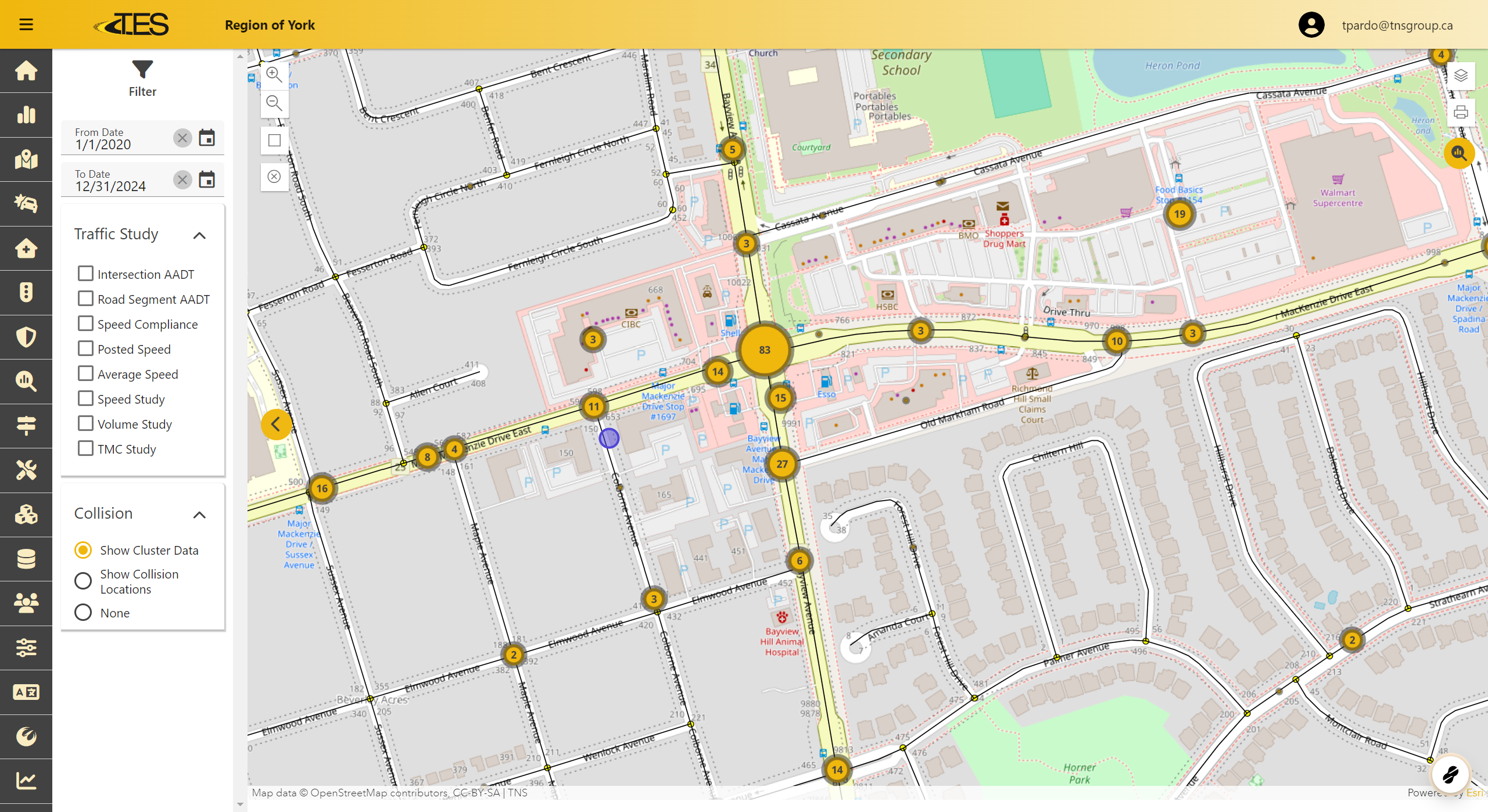
2. Click on Show Cluster Data

3. View Cluster Data
- Each cell shows the number of collisions that had occurred at the area covered by and around the cell.
- Zooming out groups the cells into bigger cells that cover a more general area and zooming in splits cells into smaller cells that cover more specific areas.

4. Click on Show Collision Locations

5. View Collision Locations
- Each cell works similar to the cluster data cells except instead of displaying number of collisions, cells display the number of locations that had at least one collision occur on them.
- If you zoom into one location that has a collision however, the cell that corresponds to the location will display the number of collisions that occurred at that location.
- If there is a cell that is red, that means there was a fatal collision that occurred at one of the locations the cell encapsulates.
- The bracketed number in the red cells is the number of fatal collisions that occurred.

6. View Collision Information
- Click on a cell to view collision information
- If a cell contains only one location, you will be able to view the number of collisions as well as location details.
- If a cell contains contains multiple locations, you will be able to see the number of collisions and the number of each collision type.

7. Filter Collisions
- Change the To and From Dates to filter the collisions shown on the map

8. Hide Collision Data
- Click on None to hide all collision data on the map

9. View Traffic Study Data
- Click on the traffic study data you would like to see on the map
- Traffic Study data can appear on the map alongside collision data.
